Free · Open source

Network Traffic Widget

Traffic widget for Windows · compatible with FRITZ!Box

EnglishDeutschFrançaisEspañolItalianoNederlands

How much is going through your line right now? This small widget shows the current download and upload rate of your FRITZ!Box right on the Windows desktop and keeps a history: per hour, day, week, month and year. You also see how busy your line is, how long the connection has been up and when the box last reconnected.

No installation, no account, no cloud. The program talks only to your FRITZ!Box in your home network and sends nothing to the internet.

.zip2.7 MBVersion 1.3.0

SHA-256 of the ZIP file

810395293d718c7e5a306bd3549a89d85547c5a9dd3b66b072bd59dcc3c8fb3b

If the checksum of your file matches this value, it is exactly the file we published. How to check

Please download it only here. The Network Traffic Widget is officially available only on modulstyle.com. Copies from other sites, download portals or forums are often modified and bundled with malware. If in doubt, check the SHA-256 checksum.

Free and without warranty. You install and use it at your own risk, see terms of use.

Try the preview · sample data only

Live preview with sample data on a 100/40 Mbit/s line. This is how the real widget behaves. You can already switch the heading and download colour here; in the program you can also set the upload and background colour and the size (up to 200%). “Whole desktop” also shows the taskbar display next to the clock.

Quick guide

Four steps to your traffic display. No password at all.

You don't need your FRITZ!Box login.

No user name, no password, no sign-in. The widget only reads the counters and connection status that the FRITZ!Box provides to devices in your home network anyway when Transmit status information over UPnP is enabled.

  • The widget can only read: how much data goes through the line, how fast it is and how long the connection has been up.
  • It cannot change anything on the box: no settings, no Wi-Fi, no sharing.
  • It sees no devices, no calls, no passwords.
  • No password is stored anywhere, because there is none.

If a program calling itself “Network Traffic Widget” asks for your FRITZ!Box password, it is not ours. Close it immediately.

  1. 1

    Download

    Download the ZIP here from modulstyle.com, compare the SHA-256 checksum (81039529…c3c8fb3b) and extract it to a permanent folder, e.g. Tools\TrafficWidget.

  2. 2

    Tick one box in the FRITZ!Box

    Under Home Network → Network → Network Settings, enable Transmit status information over UPnP. That's all the box needs.

  3. 3

    Start

    Double-click NetworkTrafficWidget.exe. On first start you accept the terms of use and choose whether the widget should start with Windows. It speaks your Windows language automatically.

  4. 4

    Read it

    The widget finds the FRITZ!Box at fritz.box by itself and shows the data rate after a few seconds. A green dot means connected. Bottom right shows the graph scale, e.g. “100 Mbit/s = line”.

Download nowDetailed installation with all steps

Features

Everything you want to know about your line. Nothing you don't need.

Live data rate

Download and upload in real time, plus a mini graph of the last three minutes. The widget either calculates the rate from the byte counters or uses the value reported by the FRITZ!Box.

Line usage in percent

The FRITZ!Box reports the maximum rate of your line. The widget shows “76% of 100 Mbit/s” with a bar, and the graph is scaled to that rate. You see at a glance whether your line is maxed out.

Uptime and reconnects

Next to the status dot you see how long the internet connection has been up. When the box reconnects, you get a notification next to the clock and the time is marked in the history, even if the widget was off at that time.

History over years

Recorded hourly and shown by day, week, month or year. Browse, compare and read exact values with the mouse. Up to three years.

Taskbar display

Optionally, upload and download appear as two small lines right in the taskbar next to the clock. The text adapts to light and dark taskbars and disappears for full-screen games and videos.

Six languages, your own translations

English, German, French, Spanish, Italian and Dutch, matching your Windows language automatically. All texts live in a language file: copy, translate, reload, done. Anyone can bring the widget to their language.

Your look, your unit

Size from 100 to 200%, your own colours for download, upload and background, the name of your FRITZ!Box as heading if you like. Data rate in bit/s or byte/s, volume in MB, GB or TB.

Smooth display, no spikes

The FRITZ!Box counts in bursts, about every 1 to 5 seconds depending on the model. The widget detects this rhythm and calculates with it, so a steady download shows as a calm line, just like in your download manager.

Home network only

A built-in network lock: the program can only reach devices in your home network. No cloud, no telemetry, no account.

Autostart

Starts with Windows if you like, so the history has no gaps. If the widget was off, the traffic of that time is filled in.

No installation

A single file of about 7 MB. No admin rights, no services, no drivers. Removing it takes one click in the menu.

Open source

MIT licence, open source code, no third-party libraries. Build the exe yourself and you get a bit-identical file.

What it looks like

One glance is enough

The animations show the program with sample data. The screenshots were taken with the German interface; on an English Windows the widget speaks English. Click an image to enlarge it.

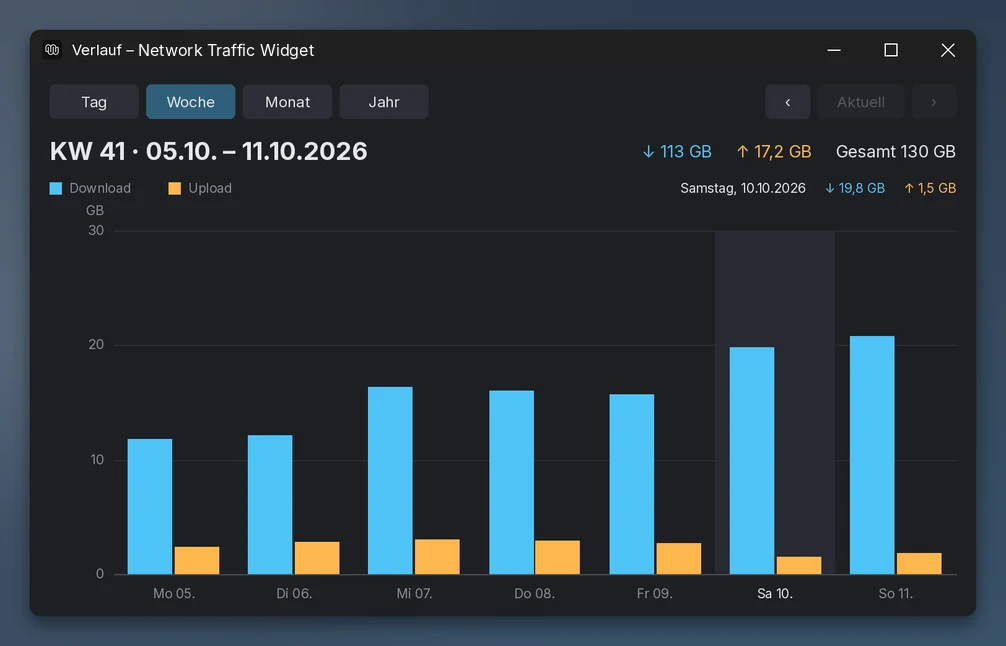
Animation: the history window shows day, week, month and year one after another; the mouse shows values of individual bars

History: day, week, month, year


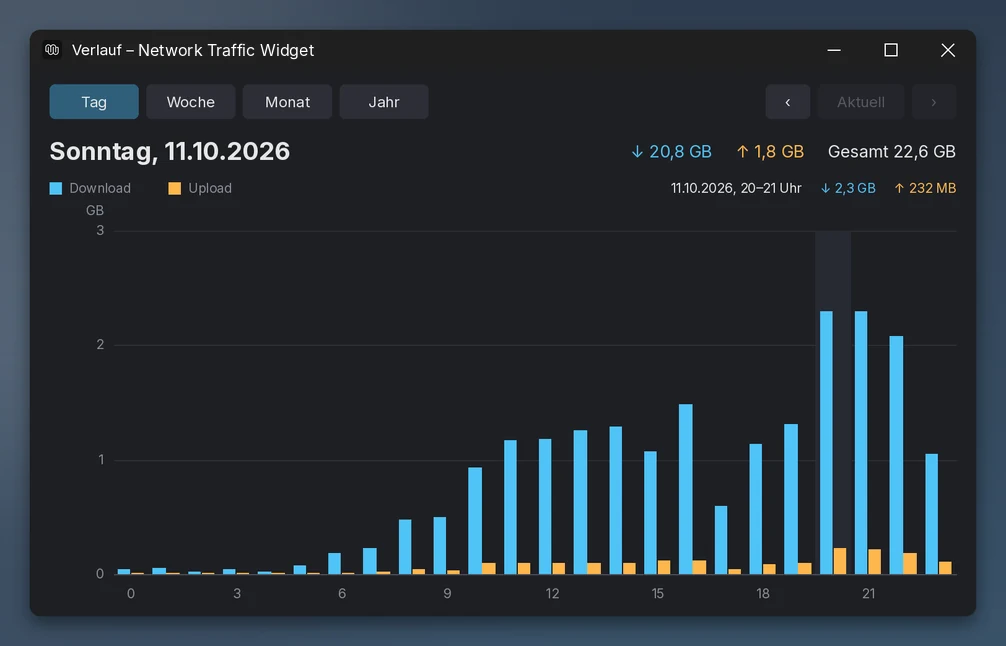
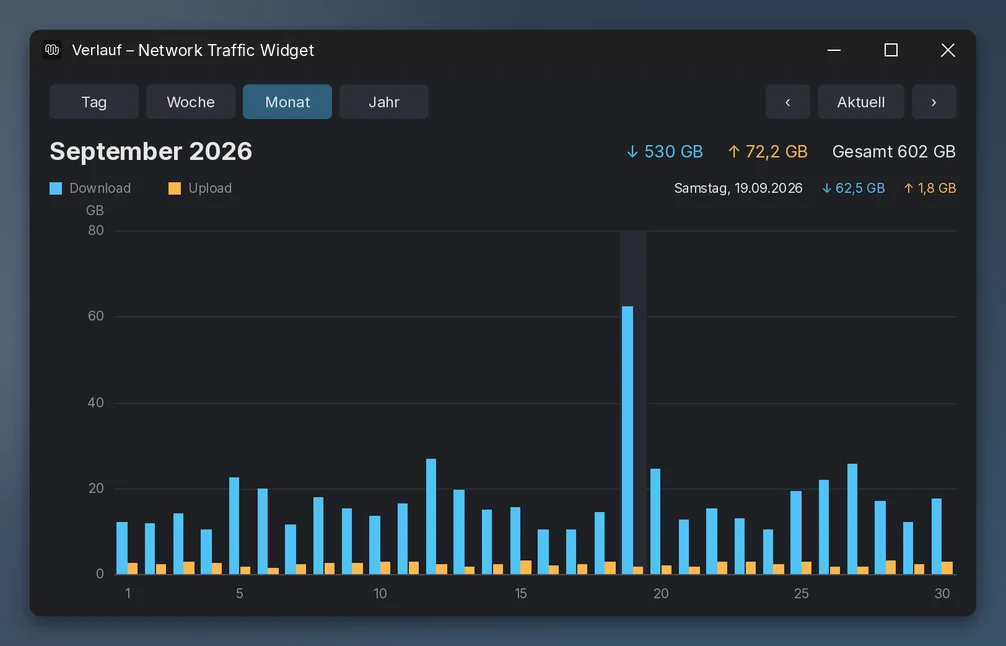
Double-click the widget to open the history. Download and upload are shown as bars side by side, with totals at the top. Use ‹ and › to browse older periods; hover over a bar to see exact values.

Animation: right-clicking the tray icon opens the menu; green is chosen as download colour and 175 percent as size, the widget changes colour and grows

Control next to the clock


Hovering over the icon next to the clock shows the current values. Left-click shows or hides the widget, right-click opens the menu. The animation shows two options: under Colours the download turns green, under Size the widget grows to 175%. All menu items are listed under Usage.

Windows desktop with the widget at the top right and the history window open in week view

Try it

A history you can touch

This is what the history window looks like. Switch the view and move your mouse or finger over the bars. The values are made up, the principle is real.

↓ · ↑ · total

Download Upload

System requirements

What you need

Not much: a Windows PC and a FRITZ!Box in the same home network. Check these points briefly before downloading.

  • Required

    Windows 10 or 11, 64-bit

    A PC with Windows 10 or Windows 11, 64-bit (x64). Older versions such as Windows 7 or 8 are not supported, nor are macOS and Linux.

  • Required

    FRITZ!Box as internet router

    The FRITZ!Box must establish the internet connection itself. If it sits behind another router, e.g. as IP client or mesh repeater, it may not deliver suitable values.

  • Required

    UPnP status information on

    In the FRITZ!Box under Home Network → Network → Network Settings, enable Transmit status information over UPnP. You don't need a FRITZ!Box password.

  • Required

    PC in the same home network

    Connected to the FRITZ!Box by cable or Wi-Fi. The widget queries the box on port 49000. A guest network or a VPN that hides the home network won't work.

  • Note

    No admin rights

    A normal user account is enough. Nothing is installed, no service and no driver.

  • Note

    About 10 MB of disk space

    About 7 MB for the program, plus settings and history of at most 1 to 2 MB after three years.

Good to know

  • You only need internet for the download. The program itself never goes online.
  • High screen resolutions and scaling (DPI) are supported.
  • The line percentage requires the FRITZ!Box to report its line rate. Not all connections do; everything else still works.

Not included

  • Windows on ARM devices has not been tested.
  • Routers from other manufacturers are not supported.
  • The widget shows one FRITZ!Box at a time, the one configured.

Installation

Ready in five minutes

The widget isn't installed in the classic sense. It's a single program file that you put in a permanent place and start. Step by step:

  1. Prepare the FRITZ!Box

    Open http://fritz.box in your browser and sign in. Go to Home Network → Network → Network Settings and, under Home Network Sharing, enable “Transmit status information over UPnP”. Save with Apply.

    The exact path may differ slightly depending on your FRITZ!OS version and language. If you can't find the option, switch on Advanced View at the bottom left. The widget doesn't need a password.

  2. Download and extract

    Download NetworkTrafficWidget-1.3.0-win-x64.zip (2.7 MB). Right-click the file → Extract All …

    Put the extracted folder in a permanent place, e.g. C:\Users\<name>\Tools\TrafficWidget. Please don't leave it in the Downloads folder if you want to use autostart.

  3. Start and confirm the Windows notice

    Double-click NetworkTrafficWidget.exe. On first start you will probably see the blue message “Windows protected your PC”. Click More info and then Run anyway.

    The message appears because the program is new and not (yet) digitally signed. Below we explain how to check the file.

  4. Accept the terms of use

    On first start the program shows the disclaimer, privacy and trademark notes in your Windows language. Yes accepts them, No exits the program without saving anything.

  5. Choose autostart

    Next the program asks whether it should start with Windows. We recommend Yes: the history is only recorded without gaps while the widget is running. You can change this any time in the menu under Start with Windows.

  6. Make the tray icon visible

    Windows often puts new icons in the overflow behind the small arrow ^ next to the clock. Drag the modulstyle icon from there to the taskbar so it is always visible.

    Alternatively on Windows 11: Settings → Personalization → Taskbar, then switch on Network Traffic Widget under the other system tray icons.

  7. Done: place the widget

    The widget appears at the top left of the screen. Drag it with the left mouse button to your favourite spot. It remembers the position, also on multiple monitors. A green dot at the top right means the connection is up.

Why does Windows warn? Windows SmartScreen warns about every new program file that isn't digitally signed yet and hasn't been downloaded often. That says nothing about malware. To be completely sure, check the SHA-256 checksum or build the exe yourself from the source code. Both ways give a bit-identical file.

Usage

All controls at a glance

Tray icon next to the clock

  • Left-clickshow or hide the widget
  • Right-clickopen the menu
  • Hoverrate, usage, uptime, today's volume

Widget

  • Hold left mouse buttonmove the widget
  • Double-clickopen the history
  • Right-clickopen the menu
  • Dot green / orange / redonline / reconnecting / disconnected or no connection

History window

  • Day, Week, Month, Yearswitch view
  • ‹ and ›previous and next period
  • Currentback to the current period
  • Hover over a barshow exact values
  • Red dot above a barreconnected in this period

Keyboard in the history

  • 1 2 3 4day, week, month, year
  • ← →previous and next period
  • Homecurrent period

The menu (right-click)

Available from the tray icon and from the widget itself.

Show widgetShows or hides the widget (like left-clicking the tray icon).
Show in taskbarShows upload and download as two small lines left of the clock. Right-click the numbers to open the menu, double-click for the history.
Show history …Opens the history window (like double-clicking the widget).
Connection & line …Status, online since, line rate and access type, usage, the displayed data rate compared with the FRITZ!Box value, and the latest reconnects.
Data rate unitAutomatic (bit/s), Automatic (byte/s), kbit/s, Mbit/s, Gbit/s, KB/s or MB/s.
Data volume unitAutomatic, MB, GB or TB. Applies to widget, tooltip and history.
Data rate sourceCalculated from byte counters (default, more accurate) or the FRITZ!Box value. If the calculation exceeds what the line can do, the widget automatically uses the box value.
Graph scaleLine maximum (default): the graph reaches exactly up to the line rate. Automatic: the graph adapts to the peak value.
Notify on reconnectNotification next to the clock when the FRITZ!Box has reconnected. Default: on.
Size100% (default), 125%, 150%, 175% or 200%. Text, spacing and graph grow along.
ColoursDownload, upload and background: presets with a colour swatch or your own colour via the Windows colour dialog. “Default colours” resets everything.
Heading“Internet” or the name of your FRITZ!Box, e.g. “FRITZ!Box 7590 AX”.
Opacity50 to 100 percent, so the widget stays subtle in the background.
Always on topThe widget stays visible above other windows.
Start with WindowsAutostart on or off. The path is updated automatically if you move the exe.
LanguageAutomatic (Windows language), Deutsch, English, Français, Español, Italiano, Nederlands and your own translations (marked with *). Switches instantly. Below: open the folder for your own translations and reload language files.
Record measurement logFor troubleshooting: records counters and rates for up to 15 minutes as a CSV file in the data folder. Numbers only, the file stays on your PC.
Edit settings …Opens the settings file in Notepad.
Reload settingsApplies changes from the settings file immediately.
AboutVersion, publisher, licence, privacy and trademark notes.
Terms of useShows the disclaimer and notes again.
Visit modulstyle.comOpens our website in your browser.
Uninstall …Removes autostart, settings and history and exits the program.
ExitCloses the program. The history is saved first.

Languages

Six languages built in. Yours is one file away.

The widget ships with English, German, French, Spanish, Italian and Dutch and picks your Windows language automatically. You can switch any time under Language in the menu, without restarting.

Missing your language? Every text of the program lives in one language file, so you can translate it yourself with any text editor.

  1. Open the folder

    Menu → Language → Your own translation: open folder … The widget creates %APPDATA%\NetworkTrafficWidget\lang with the templates template-en.json and template-de.json.

  2. Copy and translate

    Copy a template, name it after the language code (e.g. pl.json for Polish) and translate the texts to the right of the colon. Keep placeholders such as {app}; \n is a line break, | separates list items such as weekdays.

  3. Reload and choose

    Menu → Language → Reload language files, then pick your language. Missing texts appear in English, so you can start small. A file with a typo is skipped with a hint instead of breaking anything.

{
  "_name": "Polski",
  "_author": "Your name",
  "_decimal": ",",
  "w.today": "Dzisiaj",
  "w.online": "online {dur}",
  "menu.language": "Język"
}

Finished a translation? Send it to hello@modulstyle.com and we'll ship it with the next version, with credit if you like.

Settings

For advanced users: the settings file

Almost everything can be set conveniently in the menu. It is saved in %APPDATA%\NetworkTrafficWidget\config.json. Edit settings … opens the file in Notepad; afterwards choose Reload settings.

The most important key is host: if your FRITZ!Box can't be reached at fritz.box, enter its IP address here, usually 192.168.178.1.

KeyDefaultMeaning
host"fritz.box"Address of the FRITZ!Box, e.g. 192.168.178.1. Only home network addresses are allowed.
port49000UPnP port of the FRITZ!Box. Normally leave unchanged.
rate_unit"auto_bit"auto_bit, auto_byte, kbit, mbit, gbit, kbyte, mbyte
volume_unit"auto"auto, mb, gb, tb
graph_scale"line"line = fixed to the line rate, auto = by peak value.
rate_source"counter"counter = calculated from byte counters, box = FRITZ!Box value.
reconnect_note_offfalsetrue turns off the reconnect notification.
taskbar_displayfalsetrue shows upload and download in the taskbar.
size_percent100Widget size in percent (100 to 300, menu 100 to 200).
color_download, color_upload, color_background"#4fc3f7", …Colours as #rrggbb.
title"internet"internet = heading “Internet”, box = name of the FRITZ!Box.
language""Empty = Windows language, otherwise a code such as en, de, fr, es, it, nl or that of your own language file.
alpha_percent90Opacity of the widget in percent (20 to 100).
topmosttrueAlways on top.
hiddenfalseWidget hidden (tray icon only).
x, y100, 100Position of the widget in screen pixels.

Example

{
  "host": "192.168.178.1",
  "port": 49000,
  "rate_unit": "mbit",
  "volume_unit": "gb",
  "language": "en",
  "topmost": true
}

The history is stored in the same folder in history.json, hourly for up to three years (about 1–2 MB). The widget also remembers reconnects there. You can back up the file and take it to a new computer.

Privacy and security

Your data stays at home. Technically enforced.

A promise alone isn't enough for us. That's why the program has a built-in network lock that doesn't even allow connections to the internet, even if someone edits the settings file.

Only your FRITZ!Box

Via UPnP (port 49000) the program sends exactly three read-only status queries to your FRITZ!Box: GetAddonInfos (data rate, counters), GetCommonLinkProperties (line rate) and GetStatusInfo (connection status, uptime). It contacts no other device and no server on the internet.

Technical network lock

Only private addresses such as 192.168.x.x, 10.x.x.x, 172.16–31.x.x or fd00::/8 are allowed. If an internet address is entered in the settings file, the connection is blocked and the widget reports “Host not in home network”.

No proxy, no redirects

System proxies are deliberately ignored and redirects are not followed. The address is checked once and exactly that IP is connected, so it can't be bent via DNS.

No telemetry

No usage statistics, no crash reports, no ads, no update service, no account. There's nothing that could phone home.

No password needed

The UPnP status query doesn't require a login. The widget doesn't know your FRITZ!Box password and stores no credentials.

Everything stays local

Only config.json, history.json and your own language files are stored in %APPDATA%\NetworkTrafficWidget, plus one entry in the user area of the registry for autostart. No admin rights needed.

Help

Frequently asked questions and troubleshooting

Do I need my FRITZ!Box password?+
No. The widget needs neither a user name nor a password and never asks for one. It only reads traffic counters, line rate and connection status, which the FRITZ!Box provides in the home network when Transmit status information over UPnP is enabled. It cannot change anything on the box. If a program with this name asks for your password, it is not ours.
The widget shows a red dot and “No connection – is UPnP status enabled?”+
Usually the option Transmit status information over UPnP is not enabled in the FRITZ!Box (see installation, step 1). Also check that your PC is in the same network as the FRITZ!Box and that http://fritz.box opens in your browser. If that doesn't help, open Edit settings … in the menu, enter the box's IP address under host, usually 192.168.178.1, and choose Reload settings.
The widget reports “Host not in home network – blocked”+
The settings file contains a host address that isn't part of your home network. For security reasons the program then doesn't connect. Enter the local address of your FRITZ!Box, e.g. 192.168.178.1.
The values stay at 0+
The counters come from the FRITZ!Box that establishes the internet connection. If your FRITZ!Box sits behind another router (e.g. as IP client or mesh repeater), it may not deliver suitable values. Enter the address of the FRITZ!Box that is directly connected to the internet.
Windows warns on start. Is the program safe?+
Windows SmartScreen warns about all new programs that aren't digitally signed yet and haven't been downloaded often. That says nothing about malware. You can check the file using the SHA-256 checksum or build it yourself from the open source code. Both ways give a bit-identical file.
My antivirus flags the file+
With new, unsigned programs this occasionally happens as a false positive, especially with programs written in Go. Compare the checksum with the one on this page. If it matches, you can report the file to your antivirus vendor as a false positive. Please let us know too.
Which languages are available? Can I translate it myself?+
English, German, French, Spanish, Italian and Dutch are built in. The widget uses your Windows language automatically; you can switch any time under Language in the menu. To translate it yourself, choose Language → Your own translation: open folder …, copy template-en.json, name it after your language code (e.g. pl.json), translate the texts and choose Reload language files. Missing texts appear in English.
How accurate are the values?+
The numbers come straight from the byte counters of the FRITZ!Box. The FRITZ!Box counts in bursts, about every 1 to 5 seconds; the widget follows that rhythm and smooths small fluctuations. Connection & line … shows how often your box counts. For the history: if the FRITZ!Box reconnected while the widget was off, the traffic before that is missing. The values are a good guide but not a basis for billing.
Can I make the widget bigger, change colours or show the name of my FRITZ!Box?+
Yes, all in the menu (right-click): Size grows the widget up to 200%, Colours lets you pick download, upload and background, and Heading shows the name of your FRITZ!Box instead of “Internet”. The widget reads the name from the device description the box provides in the home network without a password.
Where does the widget get my line rate from? Why is the percentage missing?+
Through the same status query, the FRITZ!Box reports the rate its line is synchronised at, i.e. the technical maximum. The widget converts the current rate into a percentage of it. With some connections, e.g. when the FRITZ!Box sits behind a cable or fibre modem, no line rate is reported. Then only the percentage line is missing; everything else works as usual and the graph scales automatically.
What does the “Reconnected” notification mean?+
The internet connection was re-established, e.g. by some providers' nightly forced disconnect, a restart of the box or a short outage. The widget recognises this because the connection started later than last known. You can turn the notification off in the menu. Connection & line … lists the latest reconnects.
Is traffic recorded while my PC is off?+
No, the widget only records while it is running. If the FRITZ!Box stays online in the meantime, the traffic is still in its counter: on the next start it is filled in and spread evenly over the hours of the pause. After a reconnect of the box, the traffic before the reconnect is missing.
Can I see which device uses how much?+
No. Through the official interface, the FRITZ!Box only provides the total of the internet connection, not the usage of individual devices.
The widget has disappeared+
Left-click the tray icon next to the clock and it reappears. If you can't find the icon, look behind the arrow ^ next to the clock. You can also simply start the exe again: that brings back a hidden widget.
Does the widget work with other routers, on macOS or Linux?+
The program is made for the FRITZ!Box and Windows 10/11 (64-bit). Other routers and operating systems are not supported. Windows 7 and 8 are no longer supported by the Go version used.
Does the program need admin rights or install services?+
No. It runs with normal user rights, installs no services or drivers and only writes to your own user folder.
Can I back up the history or move it to a new PC?+
Yes. Copy the folder %APPDATA%\NetworkTrafficWidget (typing it into the Explorer address bar is enough) to the new computer before starting the widget there for the first time.
How do I remove the program completely?+
Right-click the tray icon → Uninstall …. This removes autostart, settings and history and exits the program. Then delete the program folder.

Version history

What has changed

Version 1.3.0

Current · Multilingual
  • Languages: English, German, French, Spanish, Italian and Dutch (menu “Language”). Default is the Windows language, otherwise English. Switching takes effect instantly.
  • Your own translations: all texts live in language files. The widget creates templates on request; a translated copy appears in the menu after “Reload language files”. Missing texts fall back to English, faulty files are skipped with a hint.
  • Date, time, decimal separator and percentages in the format of each language. English quick guide README.txt in the package.
  • History window: tabs and legend adapt their width to the text. Fixed: “&” in a menu item was shown as an underscore.
  • The terms of use are translated; the German version remains legally binding. Settings and history are kept when updating.
  • 1.2.0 · 13 Oct 2026Size up to 200%, free choice of colours, FRITZ!Box name as heading, graph scale moved to the footer.
  • 1.1.1 · 13 Oct 2026Mini graph in the rhythm of the FRITZ!Box, no more steps.
  • 1.1.0 · 12 Oct 2026New name, taskbar display, line usage in percent, uptime, reconnect detection, calmer data rate.
  • 1.0.0 · 12 Oct 2026First public version, then called “Traffic-Widget für FRITZ!Box”.

Full details in CHANGELOG.txt (German) in the download.

Files

Downloads and checksums

This page is the only official source.

We publish the Network Traffic Widget exclusively on our own servers at modulstyle.com. If it shows up elsewhere, e.g. on download portals, in forums or as an email attachment, it has usually been modified and bundled with malware. Don't download or run it from there. If you find such a copy, please let us know.

The SHA-256 checksum makes sure the file arrived complete and unchanged. On Windows, use PowerShell:

Get-FileHash .\NetworkTrafficWidget-1.3.0-win-x64.zip -Algorithm SHA256

Program for Windows

The exe with English quick guide, German manual, version history and licences. Exactly right for most people.

NetworkTrafficWidget-1.3.0-win-x64.zip · 2.7 MB

SHA-256

810395293d718c7e5a306bd3549a89d85547c5a9dd3b66b072bd59dcc3c8fb3b

Source code

The complete Go source code including icon, language files and the resource tool. To read, check and build yourself.

NetworkTrafficWidget-1.3.0-quellcode.zip · 165 KB

SHA-256

67e15efe1829ddac69ce3ef225cdc421cdf0c56740479d5819830aca05bf38c3

Checksums

All SHA-256 checksums as a text file, including the exe itself.

SHA256SUMS.txt · 1 KB

Open source

Open source code, clean licences

The widget is released under the MIT licence. You may use, share and modify it free of charge and reuse the code in your own projects, as long as the licence notice is kept.

Excluded are the modulstyle logo, the program icon derived from it and the name modulstyle. If you distribute a modified version, please use your own icon.

The program is written in Go and uses no third-party libraries apart from the Go standard library (BSD-3-Clause). All notices are in THIRD-PARTY-NOTICES.txt, included with every download.

Build it yourself

With Go 1.24 or newer in the extracted source folder:

go build -trimpath -ldflags "-H windowsgui -s -w" -o NetworkTrafficWidget.exe .

With Go 1.24.7 this produces a file bit-identical to the download. The SHA-256 checksum of the exe is:

1a33f5d19a69f518c5e1e998c1b1a280d96ca5072eaf1e26089e36223d6712b5

Components used

  • Go standard library: BSD-3-Clause, © The Go Authors. Included in the exe.
  • tc-hib/winres: 0BSD. Only used to create the icon, not in the exe.
  • nfnt/resize and golang.org/x/image: ISC and BSD-3-Clause. Indirectly via winres, not in the exe.
  • Font: Windows system font Segoe UI, not included.

Questions, ideas, found a bug?

Write to us in English or German. We're happy about every piece of feedback, and about translations.

Project portal

Client login

For clients with an ongoing project. You received your user name and password from us.

Encrypted connection. After five failed attempts, sign-in is locked for 15 minutes.